


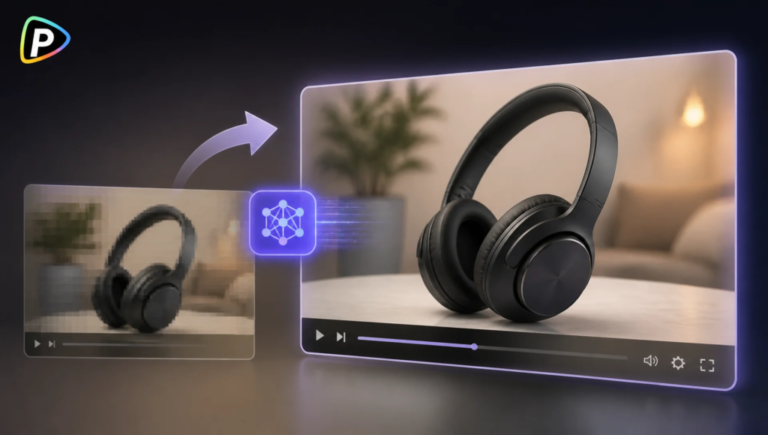
A product demo can be useful even when the video looks a little blurry or low-resolution. Instead of filming the product again, an AI video upscaler can improve the existing footage and make key details easier to see.
This is handy for older product videos, phone-recorded demos, and UGC footage that lost quality after editing or compression. Pollo AI lets sellers upload an existing video, choose an upscale option, and create an enhanced version without rebuilding the demo.
Why Use Pollo AI Video Upscaler for Product Demo Videos?
AI Video Upscaler from Pollo AI is built for improving existing footage rather than creating a new video. It can increase video resolution, including upscaling footage to 1080p or 4K, and lists product videos and UGC ads among its use cases.
The process is also straightforward: upload a video, choose the settings, and create the enhanced version. That makes it useful when the original product demo is still worth using but does not look sharp enough.
It is worth keeping expectations realistic, though. Upscaling can improve existing detail, but it cannot fully fix footage that is badly out of focus or heavily blurred.
How to Upscale a Product Demo Video with Pollo AI
1. Choose the Best Source Video
Use the highest-quality version available, preferably the original camera file or master export. Avoid downloading a video from TikTok or another social platform and then upscaling it, since compression may have already removed useful detail. If the footage has already been edited in a tool such as CapCut AI video editor, it is also better to keep the highest-quality export rather than reusing a compressed version.
Before uploading, check the product itself. If labels, buttons, or textures are already completely out of focus, an upscaler cannot reliably bring them back.
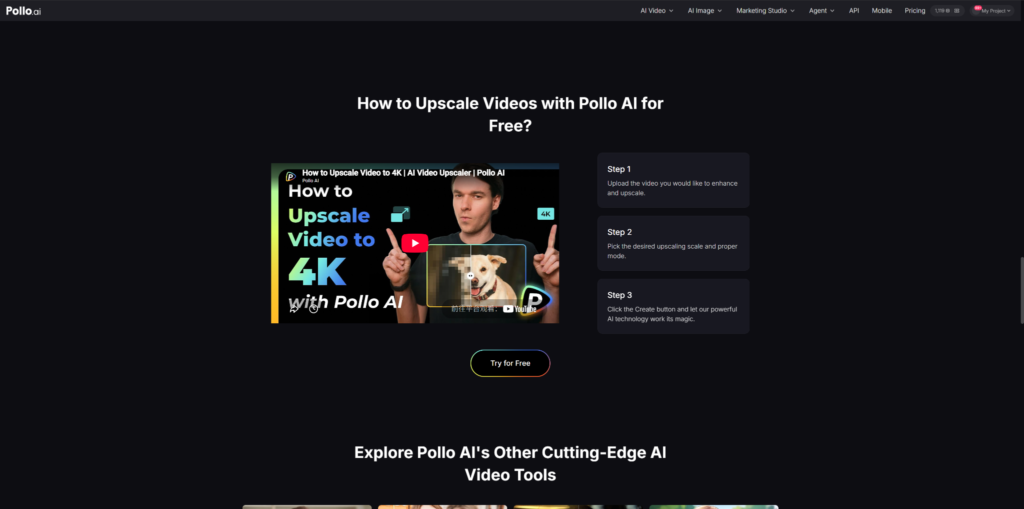
2. Upload the Video to Pollo AI
Open Pollo AI’s Video Upscaler and upload the product demo. The tool starts with the video upload before moving to the enhancement settings.
For a long video, testing a short section first can save time. A close-up product shot is a good test because it quickly shows whether edges, textures, and small details become clearer.
3. Pick a Suitable Upscaling Option
Choose the scale and mode based on where the finished video will be used. Pollo AI supports higher-resolution outputs such as 1080p and 4K.
The highest setting is not always necessary. A product video shown in a standard online store player may work well at 1080p, while footage intended for a large display may benefit from a higher resolution.
More importantly, avoid pushing a heavily compressed video too far. A higher output resolution does not automatically create more real detail and can sometimes make compression artifacts easier to notice.
4. Create and Check the Result
After selecting the settings, click Create to process the video.
Compare the enhanced version with the original before publishing it. Pay particular attention to product edges, logos, packaging text, buttons, and moving parts. The video should look clearer without strange outlines or an overly sharpened appearance.
Product information should also be checked against the original listing. If a small label was unreadable before, a sharper-looking version should not be treated as automatically accurate.
5. Add the Enhanced Video to the Store
Once the result looks natural, the video can be prepared for its product page, marketplace listing, or ad.
Keep the original file, too. If the video needs more editing later, it is better to work from the original than repeatedly process an already-upscaled version.
Common Problems to Avoid
The main limitation is the source footage. If the camera missed focus, the video has severe motion blur, or important details were never captured, re-recording may be a better option.
It is also easy to assume that 4K must look better than 1080p. For an online product page, that is not necessarily true. The useful question is whether shoppers can see the product more clearly.
An upscaler also does not replace normal video editing. Poor lighting, shaky framing, incorrect product information, and awkward cuts still need to be fixed separately.
When Should an Online Store Use an AI Video Upscaler?
An AI video upscaler is a good fit when an existing product demo is still useful but looks too soft for its current purpose.
For example, a store might have an older video showing how a portable blender works. The demonstration is still accurate, but the original file was exported at a low resolution. Enhancing that footage can be easier than arranging another shoot.
The same applies to UGC videos recorded on phones. If the content feels authentic and shows the product well, improving its resolution may make it more suitable for a product page or ad.
Pollo AI’s Video Upscaler supports this type of use, including product videos and UGC ads.
Final Considerations
An AI video upscaler can give an existing product demo a useful quality boost without requiring a new shoot.
With Pollo AI, the process is simple: upload the original video, choose a suitable scale and mode, create the enhanced version, and check the important product details before publishing. The best results come from good source footage and sensible settings rather than simply choosing the highest resolution.
