


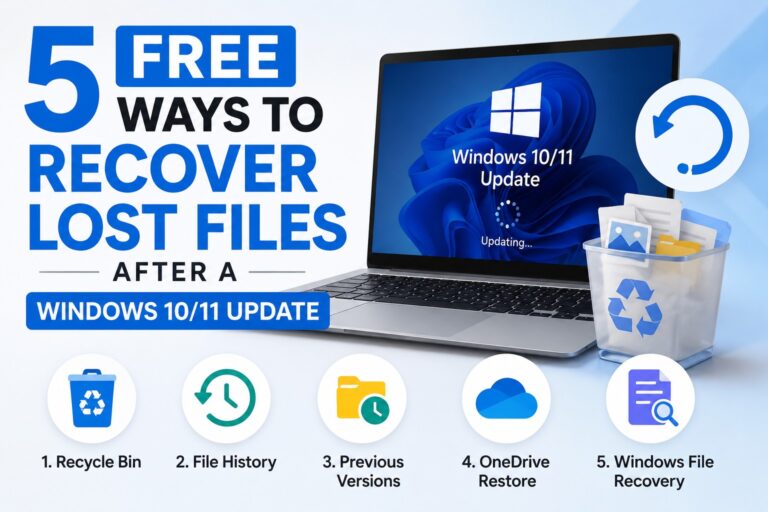
Windows updates bring new features like enhanced system security, improved performance, amazing intuitive screens, etc. However, sometimes you may encounter data loss issues on your PC after updating its OS. Whether it’s documents, photos, videos, spreadsheets, or project files, losing access to important data after an update can be frustrating.
Fortunately, in many cases, files are not lost forever. They may be hidden or moved to a different user profile. In such cases, you can easily recover your lost files on Windows 10/11 after updates using built-in Windows tools and free data recovery software tools. In this article, we’ll explore common reasons behind this file loss after a Windows update or explore quick methods to get your files back.
Why Do Files Disappear After a Windows Update?
Before attempting any free data recovery method, it’s important to understand why data loss usually happens after Windows 10/11 update. Some common reasons include:
Temporary User Profile
Windows may sign you into a temporary profile after the OS update due to account-related issues. In such cases, your original files remain on the computer but are not visible in the current profile.
Hidden Files and Folders
Sometimes, files are actually not deleted. Certain updates may alter folder settings, causing files and folders to become hidden.
Windows.old Folder Creation
During major feature updates, Windows creates a Windows.old folder, which contains all the files from the previous installation.
Interrupted Update Process
If your device OS update is interrupted or failed, it may cause file system inconsistencies, making files inaccessible.
Accidental Deletion
In rare situations, you may unintentionally delete files while performing update-related troubleshooting or system cleanup.
How I Find Files Deleted Due do to Windows 10/11 Update? [Top 5 Methods]
When you experience an update-related data loss issue on your Windows PC, go with the below free data recovery methods one by one to get your deleted data back:
Method 01: Search for Missing Files
As mentioned, your files need not always be deleted. It might be relocated to a different location on your PC. Before trying advanced free data recovery methods, try searching for your missing files. You can follow the below steps to search for your missing files on Windows PC:
- Press the Windows + S keys to open Search.
- Enter the file name or extension of the file you need to restore.
- Search using keywords such as: *.docx, *.pdf, *.jpg, *.mp4, etc.
- Go through the search results carefully.
- Once found, save the required file to your system.
You can also search the entire system using File Explorer’s search bar.
Method 02: Check the Windows.old Folder
During a major Windows 10/11 update, the OS often creates a Windows.old folder that contains files from the previous installation. If your files seem to be missing after the update, you can follow the below steps to check the Windows.old folder:
- Launch File Explorer, go to C:\Windows.old.
- Now, open the Users folder and browse your old user profile.
- Check different folder locations, including Desktop, Documents, Pictures, Downloads,
- If you find the required files, copy them to a safe location.
This folder often contains personal files from before the update.
Method 03: Use File History Backups
If you’ve synced your PC with the built-in File History backup utility before Windows 10/11 updates, your deleted files can be accessible from there. To recover your files using the File History backup feature:
- Type CP in the search box and launch the Control Panel.
- Now, go to System and Security > File History.
- Click the Restore personal files option from the left navigation pane.
- Select the backup version of the deleted file that you want to restore.
- Tap the green Restore button to save the files back to your PC.
Method 04: Restore Deleted Files from OneDrive
Along with built-in File History backup utilities, you can use cloud backup services such as OneDrive to restore deleted files. Since Windows often syncs important folders automatically, checking OneDrive can help you quickly recover lost files. For this:
- Open the OneDrive app or visit the OneDrive website.
- Sign in using your Microsoft login credentials.
- Go to the Recycle Bin and browse through different files. Alternatively, use the Search feature to locate the missing files.
- Once you find the required files, click Restore or Download to recover them.
- Also, verify that the recovered files are accessible on your computer.
Method 05: Recover Files Using Free Data Recovery Software
If none of the above methods works, you can use third-party free data recovery software to restore files deleted due to update-related issues. Tools like Stellar Data Recovery Free allow you to restore files deleted due to accidental deletion, formatting, Windows OS updates, and many other reasons. You can use this software to restore deleted photos, videos, documents, and other types of files in various file formats.
The Stellar Data Recovery Free software allows you to recover deleted files up to 1 GB for free. To restore deleted files of larger size, you can upgrade to premium versions. Moreover, the software also lets you preview the recoverable files before saving them on your PC.
Steps to recover deleted files after Windows 10/11 updates using the Stellar Data Recovery Free software:
Step 1: Download and install the Stellar Data Recovery Free software on your Windows PC. Launch the software and from the homepage, select the type of file you want to restore and click Next.
Step 2: Choose the drive, folder, or storage location where the files were stored before they disappeared after the Windows update. Click Scan to initiate the scanning process.
Step 3: Once the scan finishes, preview the recoverable files and click Recover to save recovered data to a different drive or external storage device.
After the recovery process is complete, verify that the files open correctly and contain the expected data.
Tips to Prevent Data Loss During Future Updates
Data recovery is often possible using the aforementioned free data recovery tips. However, you can also consider the following measures to minimise the risk of file loss after Windows 10/11 updates:
- Create Regular Backups: Regular backups help restore important files quickly if data loss occurs.
- Enable Restore Points: Restore points allow you to revert system changes after update-related issues.
- Verify Available Storage: Ensure enough free space to prevent update failures and file corruption.
- Avoid Interrupting Updates: Interrupting updates may cause system errors, missing files, or corruption.
- Sync Important Files: Cloud syncing keeps important files accessible even after update problems.
- Keep Recovery Software Ready: Recovery software helps retrieve lost files when other recovery methods fail.
Wrapping Up
Losing files after a Windows 10 or Windows 11 update can be stressful and may put you in trouble. If you ever encounter data loss after OS updates, go with the aforementioned free data recovery methods to restore your deleted files. By following simple DIY fixes, you can easily get access to your deleted files.
If built-in recovery methods fail, free data recovery software like Stellar Data Recovery Free can help retrieve lost files from the affected drive. Most importantly, you can consider preventive measures such as maintaining regular backups and creating restore points before updates to significantly reduce the risk of future data loss.
