


Converting a video to an SRT file is the fastest way to extract synchronized captions without reopening heavy editing software. An SRT file uses simple text and precise timestamps to control subtitle timing across video players. When you lack original project files or manage large web clips, having a quick browser-based transcription tool becomes an essential shortcut.
The actual transcription workflow varies depending on where your source material lives. Local video files usually require quick web conversion engines, while online links need direct URL parsing. This guide walks through four reliable methods, showing you exactly how to get an SRT file from YouTube video links or local desktop files without hassle.
Method 1: Hoocs.ai — AI-Powered Video to SRT File Conversion

Hoocs.ai is a browser-based video-to-SRT converter built to turn audio and video into clean subtitle files in minutes. It runs in your web browser, allowing you to process local video uploads and direct web links without installing additional software. This online setup lets you handle large media files effortlessly without filling up your hard drive or draining computer memory.
While processing your video, the platform automatically aligns accurate timestamps, separates individual speakers, and generates quick AI summary notes and visual mind maps. An intuitive side-by-side editor lets you preview captions alongside video playback and tweak line breaks with a few clicks. It is a great fit for vloggers, journalists, researchers, and team members managing video transcription tasks daily.
Pros
- Fast caption extraction running at 10x transcription speed
- Automatic speech recognition covering 130 global languages
- Subtitle export into 23 popular formats including standard SRT
- Generous 300-minute free trial allowance with watermark-free exports
Cons
- No dedicated mobile application is available yet
- An active internet connection is required to process files
How to Get an SRT File from a YouTube Video with Hoocs.ai
Converting a video to an SRT file from online videos with Hoocs.ai takes just a few minutes without downloading the video. Follow these simple steps to turn any public YouTube URL into a formatted SRT file:
Step 1: Open the Hoocs.ai Workspace. Navigate to the official website in your web browser and sign up to access your workspace dashboard.
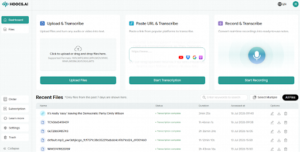
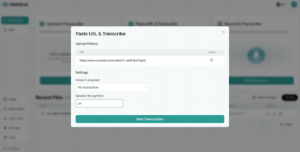
Step 2: Paste the YouTube URL. Copy the link of your target YouTube video and paste it directly into the input bar.
Step 3: Select Language and Start AI Transcription. Choose the video’s output language, toggle speaker identification if needed, and start the automated transcription.
Step 4: Review and Fine-Tune Timestamps. Preview synchronized text alongside the embedded video player, check technical terms, and adjust line breaks as needed.
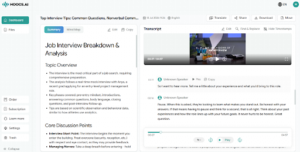
Step 5: Export the Final SRT File. Open the export drop-down menu, choose the .srt file format, and save the subtitle file directly to your computer.
Method 2: YouTube Studio — Official Creator Subtitle Export
For channel managers and video creators, YouTube Studio provides an official native path to export subtitle files directly. After you publish a video, YouTube automatically generates an initial caption track in your channel dashboard. This built-in feature allows you to download clean caption files without handing over video content or account permissions to external third-party tools.
This official method fits neatly into daily channel management and content publishing routines. Before exporting, creators can use the built-in text editor to fix minor typos or adjust line breaks directly on the platform. The resulting .srt files follow standard formatting, making them easy to repurpose across other social media channels or video platforms.
Pros
- Completely free native feature integrated directly into YouTube Studio
- Enhanced account security without third-party tool software permissions
- Built-in editor for quick typo fixes and timestamp adjustments
- Production of fully compliant SRT files for universal platform compatibility
Cons
- Restriction strictly to videos uploaded on your own channel
- Dependency on clean audio requiring potential manual caption cleanup
How to Download SRT Files from YouTube Studio
Exporting native subtitle tracks from your YouTube channel requires just a few clicks inside your creator dashboard. Here is how to download your official SRT files step by step.
Step 1: Access Your YouTube Studio Dashboard. Log into your YouTube account, open YouTube Studio, and click Content from the left navigation menu.
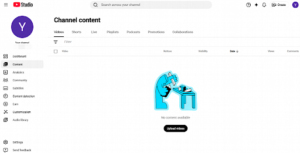
Step 2: Navigate to Video Subtitles. Select your target video from the list, open its details page, and click the Subtitles tab in the side panel.
Step 3: Export Automatic or Custom Subtitles. Locate your published subtitle track, click the three-dot options menu next to it, and select Download as .srt.
Method 3: DownSub — Direct Subtitle Extraction via YouTube Link
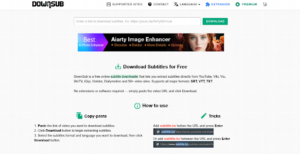
DownSub offers a straightforward path to convert any online video to an SRT file for free. It specializes in grabbing pre-existing closed captions or platform-generated subtitles. Instead of running speech recognition engines to process audio from scratch, it fetches caption files directly from the video host. This saves significant time whenever you need quick subtitle tracks without processing delays.
Using the tool requires simply pasting your target video link into the search field to retrieve all available caption files. You can select your preferred language and save the formatted .srt file instantly to your device. The entire web-based workflow requires no account registration or personal data, making it ideal for grabbing ready-made captions on the fly.
Pros
- Instant extraction of pre-existing captions without downloading raw videos
- Zero account registration, login credentials, or personal information required
- Support for official closed captions and auto-generated multi-language tracks
- Preserved original timestamp sync requiring no extra manual alignment
Cons
- Inability to extract captions if the original video lacks subtitles
- Presence of third-party advertising banners across the web interface
How to Extract Subtitles Using DownSub
Fetching existing closed captions with DownSub takes only a few simple steps in your web browser. Follow this brief guide to save ready-made subtitle files directly to your computer.
Step 1: Copy the YouTube Video URL. Open YouTube in your browser and copy the full link of your target video from the address bar.
Step 2: Paste the Link into DownSub. Access the DownSub website, paste your URL into the main search box, and click the download button.
Step 3: Select Your Target Language. Review the parsed list of available closed captions and auto-generated subtitle tracks for the video.
Step 4: Download the SRT Subtitle File. Click the SRT button next to your preferred language to save the subtitle file directly to your local storage.
Method 4: VEED.io — Browser Video Subtitle Editor
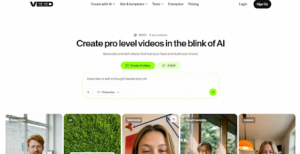
VEED.io provides an all-in-one browser video editor equipped with automated speech-to-text subtitling. Beyond simply extracting video into text, it allows creators to edit, style, and burn captions directly onto video scenes. If you need to polish video subtitles visually before saving them, it offers a complete web workspace without requiring desktop installation.
It allows you to upload local media or import web clips, run automatic transcription, and refine timing on an interactive timeline. Once your text looks right, you can download a formatted .srt file for external use. It works well for social media managers and video editors who need both visual caption styling and clean subtitle exports.
Pros
- Seamless integration of AI transcription with a timeline video editor
- Inline text editing and visual subtitle styling capabilities before export
- Support for direct video uploads and public web link imports
- Clean SRT subtitle exports alongside rendered formatted video files
Cons
- Paid subscription requirement for removing export video watermarks
- Restricted monthly transcription minutes available on the free plan
How to Generate SRT Files with VEED.io
Creating subtitle files with VEED.io lets you edit text alongside a visual video preview. Follow these simple steps to transcribe and export your SRT file.
Step 1: Upload Your Video to VEED.io. Open VEED.io in your web browser and click Upload to import your video file or paste a media link.
Step 2: Run Auto Subtitle Transcription. Navigate to the Subtitles tab in the left menu and select Auto Subtitle to start processing.
Step 3: Review Text on the Timeline. Play through your video to check caption sync, fix any typos, and adjust line breaks on the timeline.
Step 4: Export the SRT Subtitle File. Click Options at the top of the subtitle tab and select Download SRT to save the file locally.
How to Review, Edit, and Format Your Generated SRT Files
Before publishing your .srt file, it’s always a good idea to spend two minutes checking the text. Here are five practical steps to make sure your subtitles look clean and sync up properly:
- Keep lines short and easy to read: Limit each line to roughly 40 characters and show no more than two lines on screen at once. Break text at natural sentence pauses so viewers don’t feel rushed trying to read everything.
- Double-check the timing: Play back your video to make sure the audio matches the text on screen. Watch out for overlapping timecodes or captions that disappear too quickly before a sentence ends.
- Fix brand names and tech terms: AI transcriptions often misspell proper nouns, company names, or industry jargon. Skim through the text to catch these small typos before exporting your final file.
- Cut out filler words: Trim unnecessary stutters like “um,” “uh,” or accidental repeated words. Cleaning up spoken clutter keeps your transcript polished without changing the original meaning.
Conclusion
Building a streamlined workflow to convert a video to an SRT file format simplifies post-production and accelerates content distribution. Whether you need to grab pre-existing captions or transcribe raw audio tracks, modern browser tools meet these demands effortlessly. Leveraging these installation-free solutions helps you maintain high caption quality while saving valuable time and software costs.
When choosing the right method, select the tool that best matches your source material. DownSub is the fastest option for downloading existing online closed captions, while YouTube Studio offers the most secure native path for managing your own channel. For complete flexibility with local files or direct web links, Hoocs.ai delivers a reliable, feature-rich web solution for all your transcription needs.
