


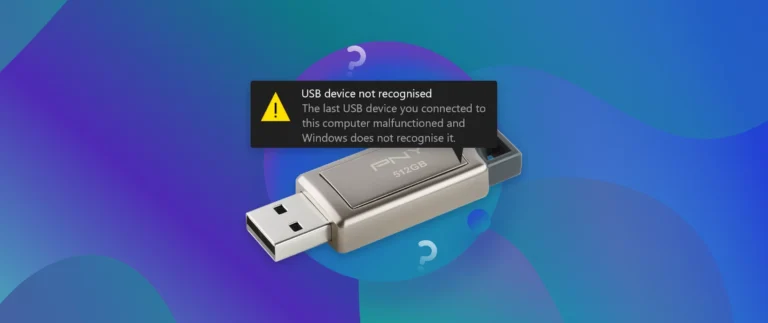
USB flash data recovery software may be exactly what you need if your USB drive suddenly stopped working or is asking you to format it before access. Have you plugged in your flash drive only to find that your files are missing, the device isn’t recognized, or Windows shows an error message? It can be frustrating, especially when important documents, photos, or videos are stored on the drive.
The good news is that a corrupted USB drive does not always mean your data is gone forever. In this guide, you’ll learn how to recover lost files safely, repair common USB drive errors, and get your flash drive working again without risking unnecessary data loss.
Let’s get started.
Part 1: When Your USB Flash Drive Stops Working
Imagine you are about to submit an important work report or access treasured family photos stored on your USB flash drive. You plug it into your computer, but instead of opening normally, Windows displays an error message.
Some users encounter a drive that suddenly becomes inaccessible. Others receive prompts asking them to format the device before using it. In certain situations, the USB drive simply fails to appear in File Explorer.
These issues often occur because of:
- File system corruption
- Improper ejection from the computer
- Virus or malware infections
- Bad sectors
- Aging flash memory
- Interrupted file transfers
The most important thing to remember is that your data may still be recoverable. Before attempting any repair method, recovering your files should be your first priority. This prevents accidental data loss during troubleshooting.
Part 2: Why USB Flash Drives Get Corrupted
Understanding the cause of corruption can help you choose the right recovery and repair method.
-
Improper Removal from the Computer
Many users remove a USB drive without using the Safely Remove Hardware option. While modern operating systems are more forgiving than older versions, disconnecting a drive while data is being written can damage the file system.
When this happens, Windows may no longer be able to read the drive correctly.
-
File System Errors or Bad Sectors
USB drives rely on a file system such as FAT32, exFAT, or NTFS to organize data. If the file system becomes corrupted, the drive may appear as RAW or inaccessible.
Bad sectors can also develop over time due to wear and tear. These damaged storage areas may prevent files from being read correctly.
-
Malware or Virus Infection
USB drives are common targets for malware because they are frequently transferred between computers.
Certain viruses can:
- Hide files and folders
- Corrupt the file system
- Modify partition information
- Make the drive inaccessible
In some cases, users mistakenly believe their files are deleted when they have simply been hidden by malware.
-
Physical Damage or Aging Storage
Although USB drives contain no moving parts, they are not indestructible.
Physical damage can result from:
- Excessive heat
- Water exposure
- Bent connectors
- Frequent plugging and unplugging
- Long-term wear of flash memory cells
While severe physical damage may require professional recovery services, many logical issues remain repairable.
The encouraging news is that most corruption problems are software-related, meaning you can often repair corrupted USB drive without formatting and recover valuable files.
Part 3: Common Signs of a Damaged USB Drive
Recognizing the symptoms of corruption can help you act quickly before data loss becomes permanent.
-
USB Device Not Recognized
The drive may fail to appear in File Explorer or repeatedly disconnect and reconnect.
Many users searching for ways to fix USB flash drive not recognized encounter this exact problem.
-
Drive Appears as RAW or Unallocated
In Disk Management, the USB drive may appear as:
- RAW
- Unallocated
- Unknown
This usually indicates file system corruption rather than complete hardware failure.
-
Format Disk Error
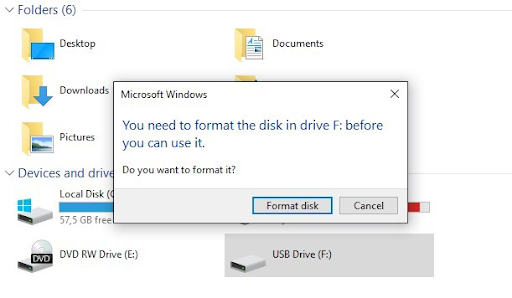
Windows may display the message:
You need to format the disk before you can use it. Although formatting can restore access to the drive, it may erase important data. Data recovery should always come first.
-
Files Are Missing or Inaccessible
Sometimes the drive opens normally, but:
- Files disappear
- Folders become inaccessible
- Documents fail to open
- Photos appear corrupted
These signs often indicate logical corruption that can still be repaired.
Part 4: How to Repair USB Flash Drive Without Losing Data
The safest recovery process involves protecting your data first and repairing the drive afterward.
Step 1: Stop Using the USB Drive Immediately
As soon as you notice corruption symptoms:
- Stop copying files to the drive
- Avoid formatting the device
- Do not repeatedly reconnect it
- Avoid running unnecessary repair attempts
Continued use can overwrite recoverable data and reduce recovery success rates.
Step 2: Recover Data First Using USB Flash Data Recovery Software
Before repairing the drive, recover your files using professional recovery software. One of the most reliable solutions available is 4DDiG Windows Data Recovery.
4DDiG is designed to help users recover files from damaged usb flash drive devices as well as other storage media.
Key features include:
- Recover data from corrupted USB drives
- Restore files from formatted drives
- Recover deleted files easily
- Support for over 2000 file types
- Recover documents, videos, photos, audio files, and archives
- Works with USB drives, SD cards, external hard drives, and PCs
- Free scanning and file preview
- Beginner-friendly interface
Whether your drive is inaccessible, corrupted, or mistakenly formatted, 4DDiG provides a safe way to retrieve your files before attempting repairs.
Step 3: Recover Files Using 4DDiG
Recovering data with 4DDiG only takes a few steps.
1.) Install and Launch the Software
Install and launch 4DDiG on your Windows computer and connect the corrupted USB flash drive.
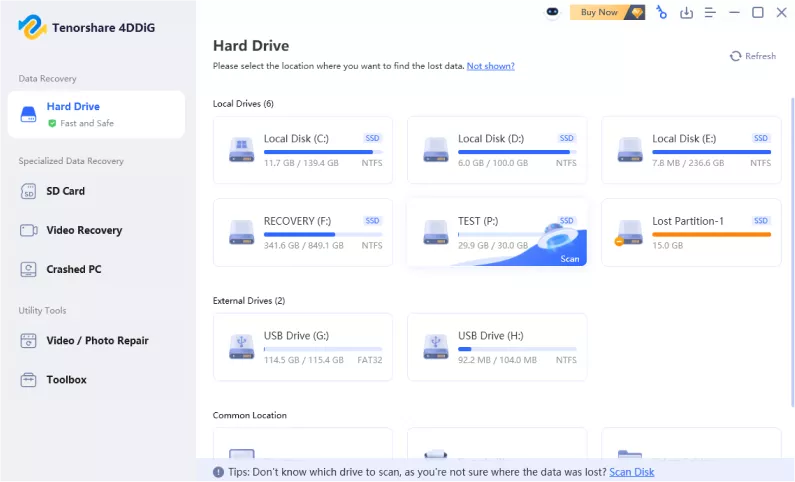
2.) Select the USB Drive
From the list of available storage devices, locate and select your USB flash drive. Click Scan to begin searching for lost files.
3.) Scan the USB Drive
The software will perform a comprehensive scan of the device.
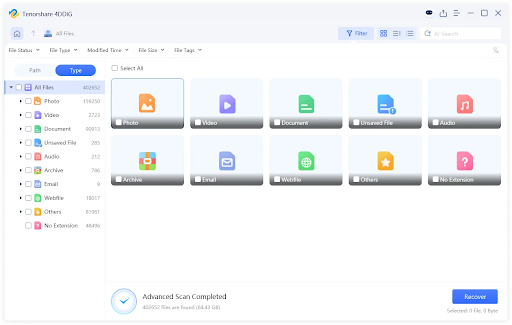
It can identify:
- Deleted files
- Lost partitions
- Corrupted data
- Hidden files
The scan process may take several minutes depending on the drive capacity.
4.) Preview Recoverable Files
After scanning completes, browse the results.
4DDiG allows you to preview:
- Photos
- Videos
- Documents
- Audio files
This helps verify that your files can be recovered successfully.
5.) Recover Files to a Safe Location
Select the files you want to restore and click Recover.
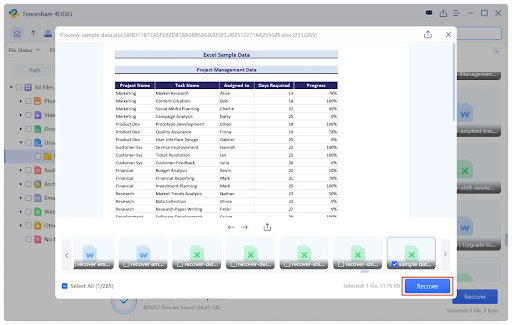
Important: Save recovered files to your computer or another storage device rather than the damaged USB drive.
Once your important files are secured, you can safely repair the USB drive.
Step 4: Repair the USB Flash Drive
After recovering your data, try the following repair methods.
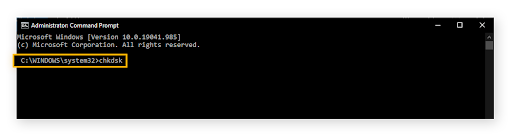
Fix 1: Run CHKDSK Command
CHKDSK is a built-in Windows utility that repairs file system errors and bad sectors.
Steps:
- Connect the USB drive.
- Search for Command Prompt.
- Right-click and select Run as Administrator.
- Type:
chkdsk X: /f
Replace X with your USB drive letter.
- Press Enter.
Windows will scan the drive and attempt to repair file system issues automatically.
This is one of the most effective methods to repair corrupted usb drive without formatting.
Fix 2: Update or Reinstall USB Drivers
Driver issues can prevent Windows from recognizing a USB device properly.
Steps:
- Press Windows + X.
- Select Device Manager.
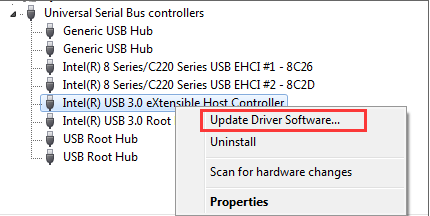
- Expand Universal Serial Bus Controllers.
- Locate the problematic USB device.
- Right-click and select Update Driver.
If updating does not work:
- Right-click the device.
- Choose Uninstall Device.
- Restart your computer.
Windows will automatically reinstall the required drivers.
This method often helps fix USB flash drive not recognized errors.
Fix 3: Assign a New Drive Letter
Sometimes Windows fails to assign a drive letter correctly.
Steps:
- Press Windows + X.
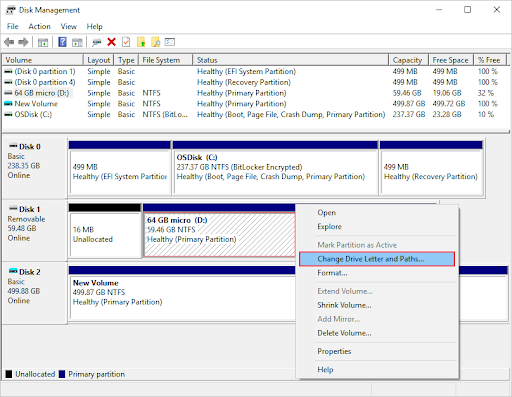
- Open Disk Management.
- Locate the USB drive.
- Right-click the partition.
- Select Change Drive Letter and Paths.
- Click Change.
- Assign a new available drive letter.
Reconnect the USB drive and check if it becomes accessible.
Fix 4: Format the USB Drive (Last Resort)
If all other repair methods fail, formatting may be necessary. However, only proceed after recovering your files successfully.
Steps:
- Open File Explorer.
- Right-click the USB drive.
- Select Format.
- Choose:
- NTFS for Windows-only use
- exFAT for cross-platform compatibility
- Click Start.
Formatting creates a fresh file system and often resolves severe corruption issues.
Part 5: Tips to Prevent USB Drive Corruption
Preventive maintenance can significantly reduce the risk of future data loss.
-
Always Safely Eject the USB Drive
Before disconnecting the drive, use the Safely Remove Hardware option. This ensures all pending write operations are completed properly.
-
Avoid Infected Computers
Public computers and shared devices may contain malware. Use reliable antivirus software and scan USB drives regularly.
-
Maintain Regular Backups
No storage device lasts forever. Keeping backup copies of important files ensures you can recover quickly if hardware failure occurs.
-
Do Not Interrupt File Transfers
Disconnecting a USB drive during data transfer is a major cause of corruption. Always wait until copying operations are fully completed.
-
Replace Aging USB Drives
Flash memory wears out over time. If your USB drive frequently disconnects or develops errors, consider replacing it before a complete failure occurs.
Part 6: Final Words
A corrupted USB flash drive can be alarming, especially when it contains important files. Fortunately, many situations involving inaccessible drives, RAW partitions, missing files, and format errors can be resolved successfully.
The most important rule is to recover your files before attempting repairs. Professional USB flash data recovery software such as 4DDiG makes it possible to recover files from damaged USB flash drive devices, restore lost data, and protect important information before troubleshooting begins.
After recovering your files, you can use methods such as CHKDSK, driver updates, drive letter reassignment, or formatting to repair the device safely. By acting quickly and following the correct recovery process, you can often fix USB flash drive not recognized issues and repair corrupted USB drive without formatting while keeping your valuable data intact.
