


For years, my routine was always the same. When something broke, I opened Device Manager, copied the hardware name, went to the manufacturer’s site and tried to find the right driver. If I had time, I would also check for updated chipset, audio and network drivers. Most of the time, I did nothing until something failed.
This started to catch up with me. After a big Windows update, I lost sound for no clear reason. My WiFi adapter dropped connections more often. A new game complained about outdated graphics components. It felt as if half my time was spent chasing download pages and guessing which driver matched my hardware.
At some point, I realised the obvious: I was acting like a human version of a driver updater. That is when I decided to try Driver Booster and see if it could take over the repetitive work for me.
What Driver Booster Actually Does
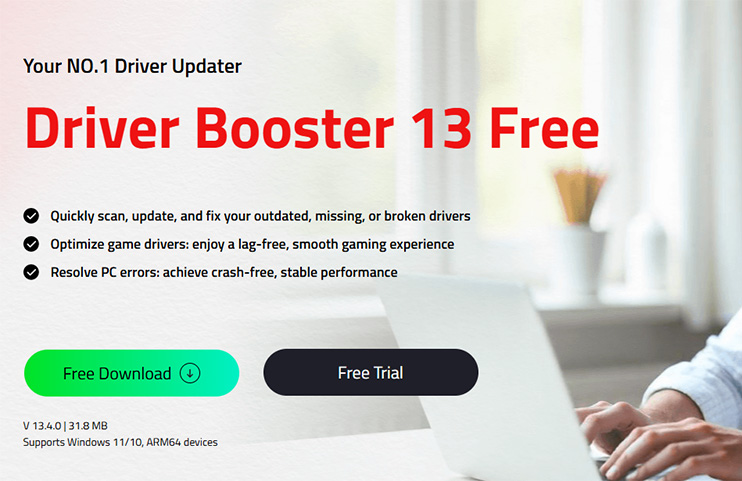
From the official information, Driver Booster 13 Free is a Windows utility that detects outdated, missing and incorrect drivers and updates them rapidly and securely with one click. It is compatible with Windows 11, 10, 8.1, 8, 7, Vista and XP and focuses on keeping the whole driver set current, not just the obvious ones.
A few details matter a lot:
Huge driver database
The free edition can access more than 12 million drivers, while the Pro edition covers over 18 million, so it can update graphics, audio, USB, network, printer, chipset, mouse, keyboard, scanner and more.
Safe sources
Drivers come from official manufacturer sites or Windows Update and must pass Microsoft WHQL tests and IObit review rules before they are offered, which reduces the risk of installing broken or malicious drivers.
One click updates
After scanning, Driver Booster lists out-of-date, missing and faulty drivers and can update them all with a single click instead of visiting each vendor site manually.
Extra tools
It includes tools to fix No Sound, Network Failure, Bad Resolution and Device Errors, problems that are often caused by driver issues.
Automation
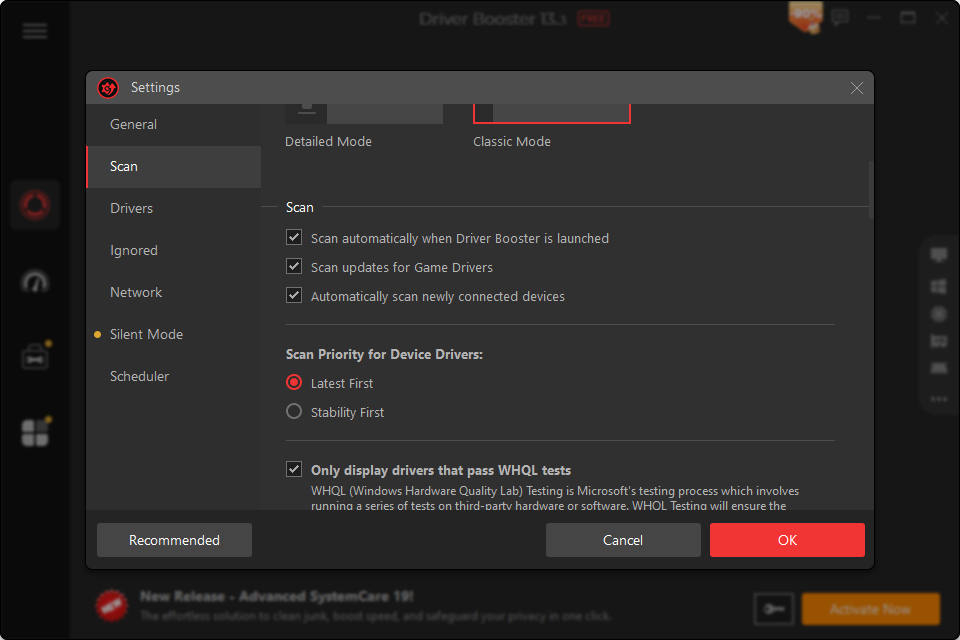
You can schedule scans, run them at Windows startup and let the program automatically update drivers while the system is idle.
Reading that made me realise that everything I did by hand could be handled more systematically by software designed for it.
How I Switched From Manual Updates To Automatic Ones
Step 1: First install and first scan
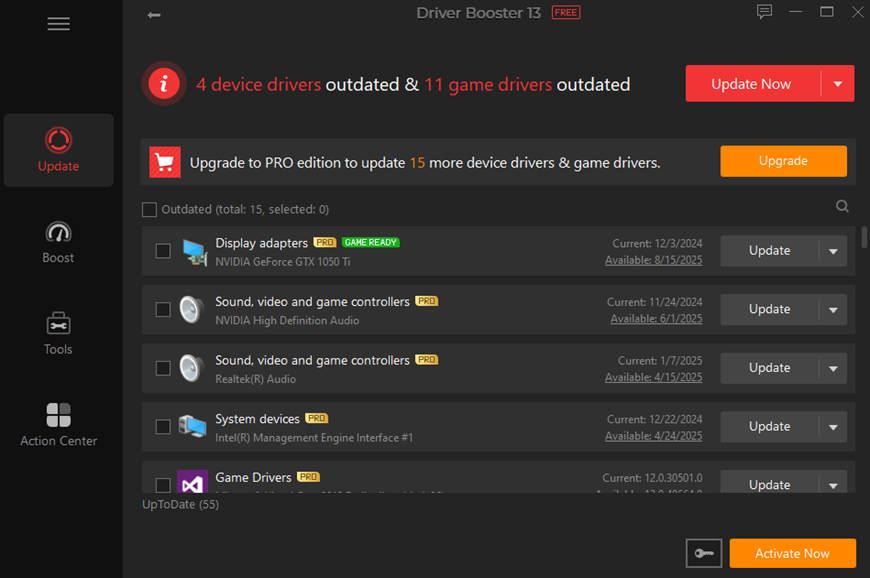
I installed Driver Booster 13 Free and launched it. It immediately scanned my system and showed how many drivers were out of date or missing. Seeing that number was a little humbling. Graphics, audio, network, storage controller, Bluetooth and several USB devices all had newer versions available.
The interface listed each device, the current driver, the available version and the release date, which made it easy to prioritise. I started with graphics, network and audio, then let it update the rest. Everything was completed without me touching a single vendor site.
Step 2: Letting it automate updates
Once I saw that the first round worked, I opened the settings and enabled scheduling. I set Driver Booster to scan at startup, and I ticked the option to automatically update drivers when the system is idle.
This meant I no longer had to remember to check for updates. When I leave my PC alone for a while, the program quietly downloads and installs new drivers and cleans up installation packages if I ask it to. The only time it interrupts me is when a reboot is required or when I want to review specific updates.
Step 3: Using the built-in repair tools
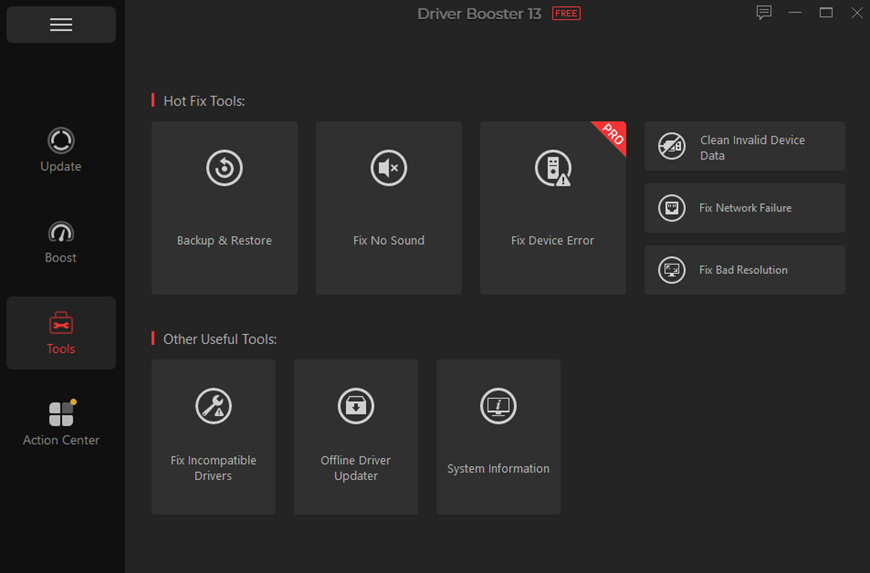
The repair tools quickly became a second reason to keep Driver Booster. When sound suddenly disappeared after a Windows update, I resisted the urge to reinstall audio drivers by hand. Instead, I opened the Tools section and selected Fix No Sound. The program checked related drivers and services, repaired the problem and restored audio without me visiting any support pages.
I did the same when my Ethernet adapter refused to connect after a power cut. Fix Network Failure refreshed the driver and resolved the problem in a couple of clicks. The same panel also offers fixes for bad resolution and other device errors, all based on driver repair.
Step 4: Taking advantage of gaming optimisations
Because I play a lot of games, I enabled game-related options as well. Driver Booster prioritises Game Ready drivers and game components and provides Game Boost, which temporarily stops unnecessary background services for better performance and fewer stutters.
Instead of manually checking for new graphics drivers before each big release, I now let Driver Booster keep them up to date. It knows about vendors like NVIDIA, AMD and Intel and fetches their game-focused drivers from official sources. That has made new game launches smoother and less stressful.
Advantages I Noticed
After a while, the benefits of letting Driver Booster handle things became clear:
Less time wasted
I no longer spend evenings digging through manufacturer sites, guessing which driver version matches my hardware. The scan and update process happens from one screen with one click.
Fewer random issues
Problems like sound dropping out, Wi‑Fi disconnects, uneven resolutions after updates and some device errors either stopped happening or became much easier to fix with the built-in tools.
More stable Windows updates
After big Windows feature updates, some drivers used to misbehave. Now I run a quick Driver Booster scan and let it refresh whatever lost compatibility, which has reduced blue screens and quirky behaviour.
Better gaming experience
Updated graphics drivers and game components, combined with Game Boost have made frame times more consistent in several titles. It is not a magic performance booster, but it does help my system stay ready for the latest games.
Most importantly, I no longer feel behind on driver maintenance. The program keeps track for me.
Disadvantages I Ran Into
There are still a few things I pay attention to:
Big batches take time
When I let Driver Booster update many drivers at once, downloads and installations can take a while and may require a reboot, so I plan those sessions when I am not on a deadline.
Rare cases of rollback
Very occasionally, a new driver introduces a minor issue. That is when I use the backup and restore functions or a system restore point to go back to the previous version, which the program supports.
Free versus Pro limits
The free version is enough for my personal use, but it has a slightly smaller database and fewer automation options than the Pro version, and it shows some upgrade prompts.
These drawbacks are manageable, and knowing how to undo a change keeps me comfortable with frequent updating.
Why I Am Not Going Back To Manual Driver Updates
Looking back, I spent years acting as a part-time driver manager without realising it. Every glitch meant another round of manual downloads and trial and error. Since I installed Driver Booster, that mental load has mostly disappeared. The free driver updater scans for outdated, missing and faulty drivers, fetches safe updates from a huge verified database and gives me tools to fix common driver-related problems without hunting for answers on forums.
I still keep an eye on what it wants to change, and I occasionally postpone an update if I am in the middle of something important. But the days of manually searching for drivers on half a dozen manufacturer sites are over. Letting Driver Booster handle that job has turned driver maintenance from a chore I avoided into a background task that quietly keeps my PC in good shape.
